

Key Takeaways
Why Notification Overload Is a Real Problem
The average smartphone user receives dozens of app notifications daily — a mix of messages, marketing alerts, news updates, and reminders that arrives with little regard for what you're doing at the time. That constant interruption isn't just annoying. Research on attention suggests that recovering full concentration after an interruption takes significantly longer than the interruption itself.
Worse, most people accept the default notification settings that apps request at install time, which are almost always set to maximize engagement rather than serve the user's needs. Productivity apps quietly compete for your attention in much the same way — their default settings prioritize re-engagement over focus.
The good news: both Android and iOS offer granular control over every notification your phone sends. The challenge is knowing how to use those controls strategically.
“Every notification is a small demand on your attention. The question isn't whether to stay connected — it's whether each alert is worth the cost of the interruption.”
— Cal Newport, Author and professor known for research on digital minimalism and deep work
Best Practices for Smarter Notification Management
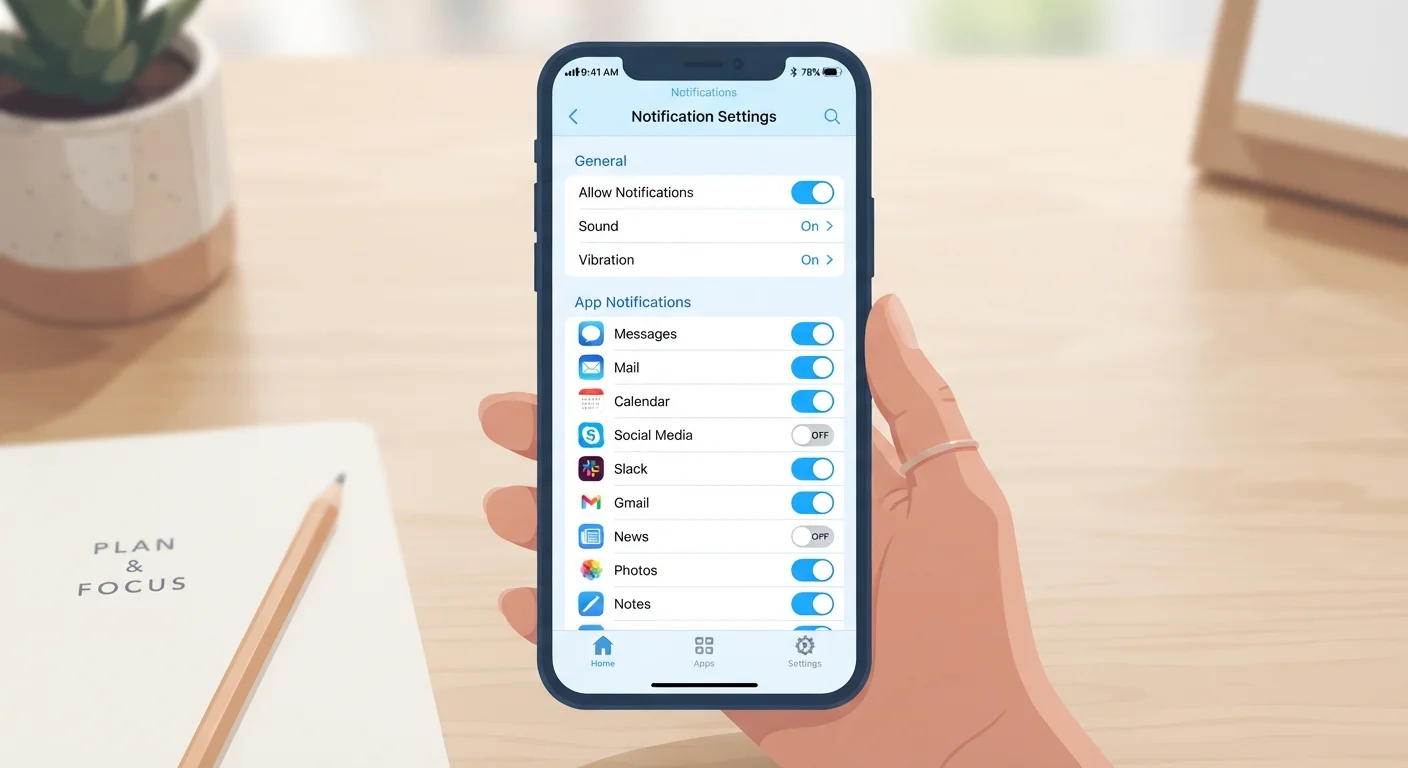
The practices below apply across both major mobile platforms. Settings menus may look slightly different depending on your device and OS version, but the underlying controls are broadly similar.
Audit every app's notification permissions once a month
Apps accumulate notification permissions over time, and many requests slip through during rushed installs. A monthly review catches permission creep before the volume becomes unmanageable and ensures you're only hearing from apps that genuinely need your attention.
Use notification channels to mute specific alert types, not entire apps
Blanket app silencing often causes missed messages you actually want. Most modern apps — and Android in particular — expose individual notification channels (e.g., 'Direct Messages' vs. 'Promotional Updates'), letting you keep the useful alerts while killing the noise.
Enable Focus or Do Not Disturb modes with carefully chosen exceptions
Blanket silence creates anxiety about missing important calls or messages. Configuring a Focus mode with explicit exceptions — calls from specific contacts, certain apps — lets you protect deep work time without going completely dark.
Schedule notification delivery rather than receiving alerts in real time
Real-time delivery interrupts you at the worst moments. Scheduled delivery batches lower-priority notifications and delivers them at a time you choose, letting you process them deliberately rather than reactively.
Silence lock-screen notification previews for sensitive apps
Displaying full notification content on a locked screen exposes private data to anyone nearby. Showing only the notification count or app icon protects that content until you authenticate.
Assign sound and vibration profiles by urgency tier
When every app uses the same alert sound, urgency becomes impossible to gauge by feel alone. Distinct audio or vibration patterns for high-priority contacts versus general alerts let you respond appropriately without looking at your screen.
Quick Actions You Can Take Right Now
If a full notification audit feels like too much to tackle at once, start with a few targeted actions that deliver an immediate improvement in focus and calm.
Notification hygiene connects directly to other phone health habits. Removing storage-hungry apps often eliminates notification sources at the same time, making both problems easier to solve together.
Notifications, Privacy, and Security
Notification settings aren't only about focus — they also carry privacy and security implications. Lock-screen notifications, for instance, can expose sensitive content (banking alerts, health reminders, personal messages) to anyone who glances at your phone. Most platforms let you show a notification's existence without revealing its content until the device is unlocked, a setting worth enabling for sensitive apps.
Be mindful of apps that request notification access well beyond what their function requires. A flashlight utility has no legitimate reason to send push alerts. Checking an app's permissions before installing is one of the best ways to avoid notification abuse before it starts. Similarly, overlooked privacy settings on your phone can quietly limit how much data flows out through those notification channels.
Check What Shows on Your Lock Screen
It takes under a minute to open your notification settings and set sensitive apps to hide content on the lock screen. Most people never change this default, yet it's one of the simplest ways to protect private information in public spaces. Look for 'Show Previews' on iOS or 'On Lock Screen' visibility options on Android.
If you wear a smartwatch, remember that notifications mirror to your wrist by default. Smartwatch notification overload is a common frustration — curate your wrist alerts separately from your phone to avoid compounding the problem.
80+
Average daily notifications per smartphone user
Industry estimates from mobile analytics researchers consistently place the average above 80 push notifications per day for active smartphone users.
~23 min
Time to regain full focus after one interruption
Attention research, including work cited widely in workplace productivity literature, suggests it takes over 20 minutes on average to return to deep focus after a single interruption.