

Key Takeaways
Why Smartphone Storage Fills Up So Quickly
Modern smartphones pack in high-resolution cameras, feature-rich apps, and large operating systems — all of which compete for the same fixed pool of internal storage. Unlike a laptop where you might add an external drive, most phones (particularly iPhones) offer no expandable storage option. That makes managing what's already on the device the primary lever you have.
Apps are a major culprit. Many accumulate cache data — temporary files stored locally to help the app load faster — that grows steadily without any action from the user. A navigation app might store offline map tiles; a streaming app keeps downloaded episodes; a social media app pre-loads images and videos. Over months, this background accumulation can dwarf the app's original install size.
Photos and videos are the other leading cause. A single minute of 4K video can occupy several hundred megabytes. If you shoot frequently and never organize or offload your camera roll, storage can fill up within a year even on a 128 GB device.
Low Storage Can Slow Your Phone
When a smartphone's internal storage drops below roughly 10–15% of total capacity, the operating system has less room to write temporary files, which can cause noticeable slowdowns and app crashes. Keeping storage well above that threshold isn't just about having space for new content — it affects how smoothly your device runs day-to-day.
Understanding how apps handle your data locally versus in the cloud can help you make smarter decisions about which content really needs to live on your device.
What You'll Need Before You Start
What you will need
Built-in Storage Settings
Shows a breakdown of how storage is used across apps, photos, and system files — no download required.
Cloud Storage Service
Offloads photos and videos from your device to free up local space while keeping files accessible.
File Manager App
Lets you browse and delete downloaded files, duplicate documents, and leftover data that don't show up in app settings.
Step-by-Step: Freeing Up Storage
Check your current storage breakdown
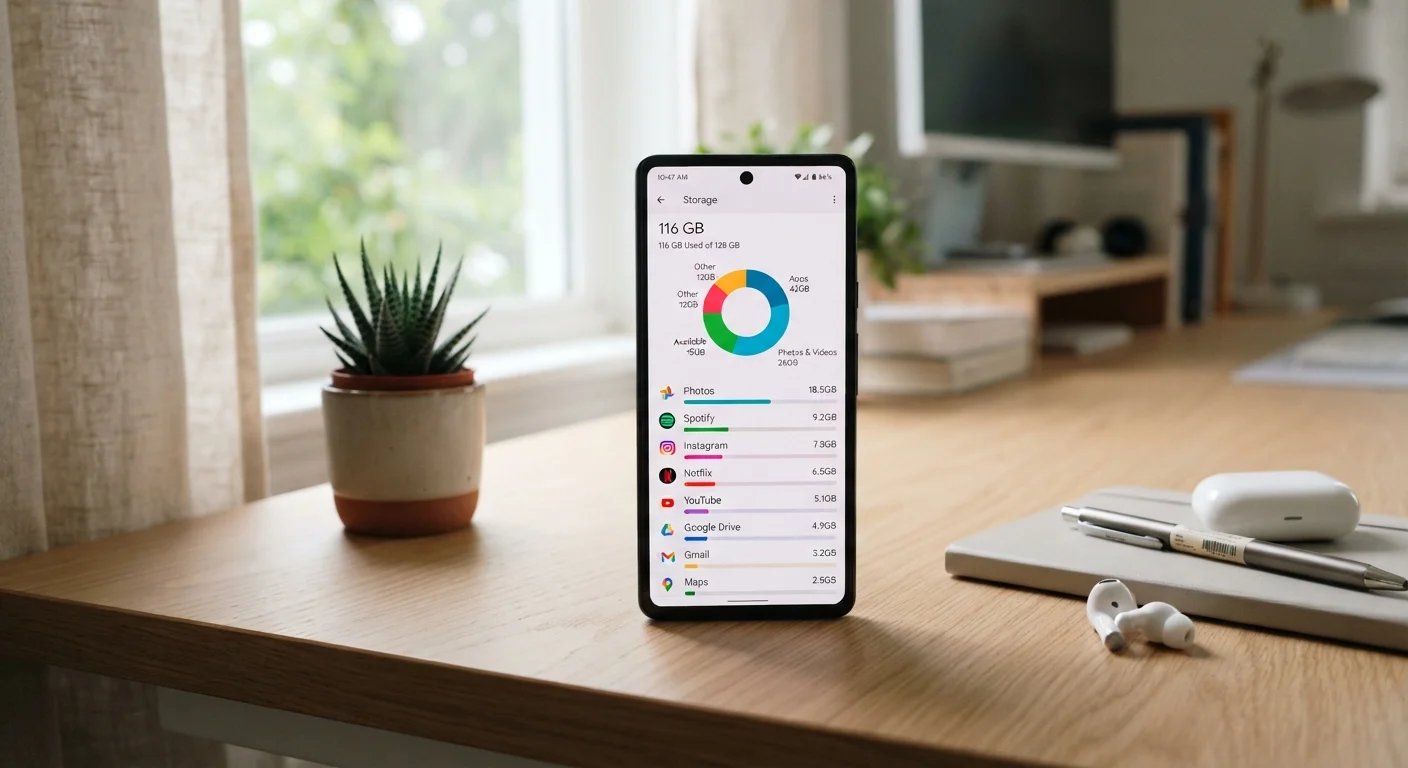
Go to Settings on your phone and look for Storage (Android) or General > iPhone Storage (iOS). Both show a visual breakdown of what's occupying space — apps, photos, system files, and miscellaneous data. Spend a moment reviewing which categories are largest before taking any action.
Identify your largest apps
Within the storage screen, tap through to see a list of installed apps sorted by size. Note any app that takes up significantly more space than you'd expect — especially ones you rarely open. Streaming, gaming, and social media apps are frequent offenders, as they accumulate large caches and downloaded content over time.
Clear app caches
On Android, tap an app in the storage list and select Clear Cache. This removes temporary files the app has stored — like pre-loaded images or session data — without affecting your personal content or login status. On iOS, there is no system-wide cache-clearing option, but you can offload an app (Settings > General > iPhone Storage > select app > Offload App), which removes the app while keeping its data intact.
Back up and offload photos and videos
Photos and videos typically consume more storage than any single app. Use your phone's built-in cloud backup — Google Photos on Android, iCloud Photos on iOS — to upload originals to the cloud, then enable the option to store smaller, device-optimized versions locally. Once you've confirmed your backup is complete, remove any duplicate or unwanted media from your camera roll.
Uninstall apps you no longer use
Return to your app storage list and uninstall any app you haven't opened in the past few months. On Android, tap the app and select Uninstall. On iOS, press and hold the app icon, then choose Remove App > Delete App. Removing unused apps not only frees storage but can also reduce background data usage and improve battery performance — an issue explored further in our guide to battery-draining app habits.
Clean up downloaded files
Downloaded PDFs, documents, and media files accumulate in your Downloads folder or Files app without appearing prominently in app storage summaries. Open the Files app (iOS) or your File Manager (Android) and sort by file size to surface large items. Delete anything you no longer need and move important documents to cloud storage.
Don't Delete System Apps
Some apps listed in your storage settings are core system components. Removing or force-stopping them can disrupt basic phone functions. If you're unsure whether an app is safe to remove, search for its name online before uninstalling.
Staying Ahead of the Problem
A one-time cleanup is valuable, but storage tends to creep back up unless you build a few simple habits. The most effective approach is a light monthly review — it takes less than ten minutes and prevents the frustration of hitting zero space at an inconvenient moment.
Set a Monthly Storage Reminder
Add a recurring calendar reminder once a month to review your storage. A quick five-minute check — deleting screenshots, clearing caches, and offloading unused apps — is far easier than a major cleanup when your phone hits zero. Small habits prevent big headaches.
It's also worth reviewing app permissions periodically. Apps that have access to your photos library can sometimes write data back to your device in ways you didn't intend. Our guide on what app permissions actually share explains how to audit and tighten those settings. And if you're thinking about upgrading to a new phone to solve a storage problem, transferring your data cleanly is worth planning carefully before you make the switch.