

Key Takeaways
Summary
18 items · 10–20 minutes
Why a Quick Check Before Downloading Matters
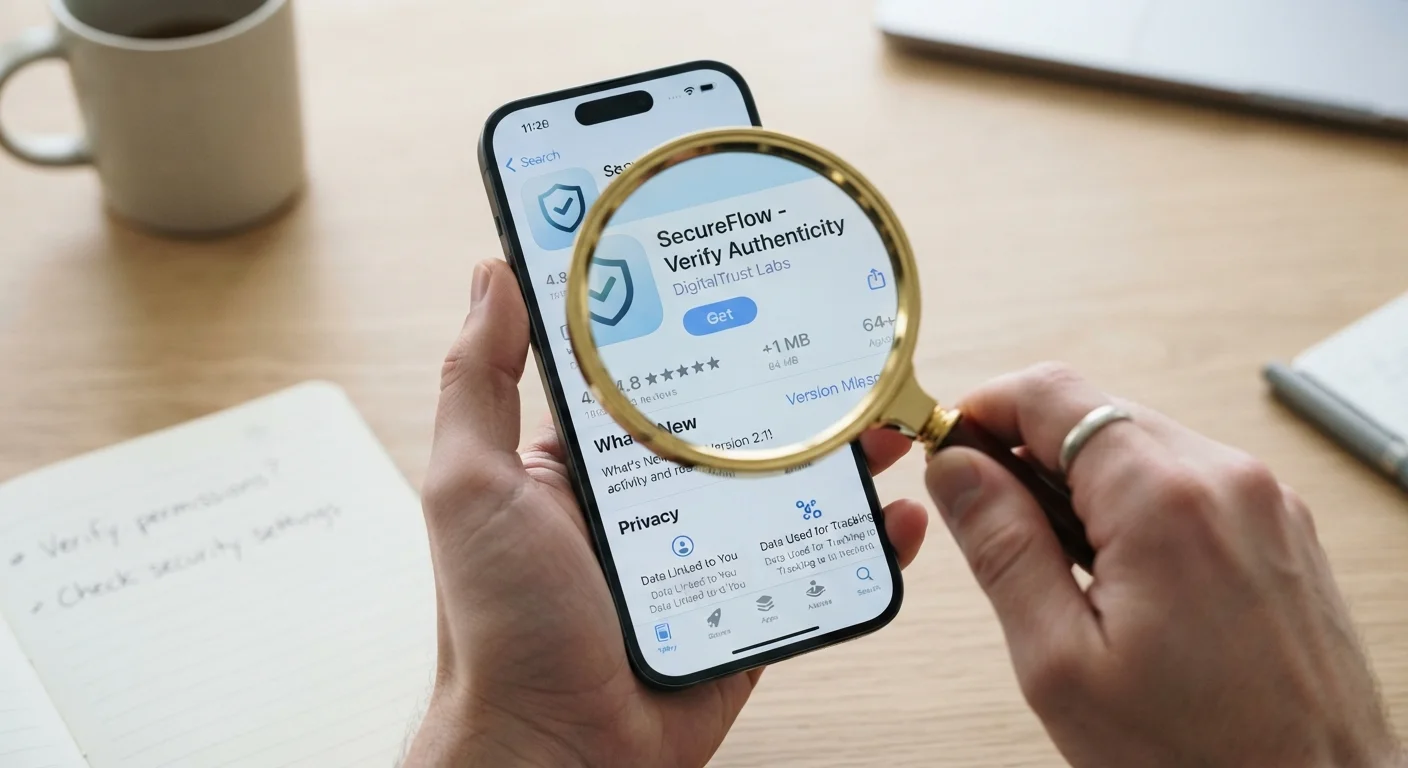
Most people tap 'Install' without a second thought — and most of the time, nothing bad happens. But occasionally, an app that looks perfectly ordinary turns out to request excessive access to your contacts, location, or microphone, or to share your data with third parties in ways a brief glance at the description would never reveal.
The good news is that a structured review takes under 20 minutes and requires no technical expertise. Whether you're brand new to smartphones or an experienced user, this checklist gives you a consistent process to apply before any download. For a broader introduction to navigating apps safely, see our guide to apps for first-time smartphone users.
Understanding what apps cost you in terms of data — not just money — is also worth considering. Our piece on how free apps really make money explains the data-collection model that powers most no-cost software.
Lookalike Apps Are a Real Threat
Fraudulent apps designed to impersonate legitimate banks, government agencies, or popular services do appear in official stores, even though both Apple and Google use vetting processes. Always verify the developer name and cross-check it with the official website of the organization before downloading. A near-identical icon and name is not sufficient confirmation of legitimacy.
Sideloading Carries Significant Risk
Installing apps from outside official stores — known as sideloading — bypasses the security review processes that catch many known threats. Unless you have a specific, well-understood technical reason and can fully verify the source, avoid sideloading apps on personal devices. This is especially important if your device also stores work email, banking credentials, or sensitive personal information.
What You'll Need
No special software is required for this checklist. You'll use tools that are already built into your phone and the app stores themselves.
Apple App Store
Official source for iOS app downloads, including Privacy Nutrition Labels summarizing data collection practices.
Google Play Store
Official source for Android app downloads, including the Data Safety section outlining what each app collects and shares.
Device Settings (Permissions Manager)
Used to review and revoke app permissions on both iOS and Android after installation.
VirusTotal
Free web tool that lets you scan app files or URLs against multiple security engines to check for known threats.
For a more comprehensive look at app security practices beyond the download decision itself — including updates, two-factor authentication, and ongoing habits — see The Complete Picture on App Security for Everyday Users.
The App Safety Checklist
Work through each group in order. If you hit a 'must' item that you cannot confirm, treat it as a reason to pause — not just proceed with caution. The final group helps you make a deliberate go or no-go call rather than defaulting to installing because the app was convenient.
Source Verification
App Store Signals
Permissions Review
Privacy and Data Practices
Final Go / No-Go Decision
Permissions Can Be Changed After Install
You do not have to accept every permission an app requests at install time, and you can revisit these decisions at any point. On both iOS and Android, navigate to your device Settings, find the app under Privacy or Apps, and toggle each permission individually. Restricting location access to 'While Using' rather than 'Always', for example, limits background data collection without breaking most app functionality.
Once an app is installed, your work isn't finished. Reviewing the permissions you've granted and staying aware of how apps handle your data are ongoing habits. Our guide to overlooked privacy settings covers the device-level controls most users never adjust. And if you want to audit your broader digital footprint, the Digital Security Audit checklist is a practical next step.
For context on how apps store and sync your information in the background, Cloud Sync vs. Local Storage explains the trade-offs between convenience and privacy in plain terms.