

Key Takeaways
The Settings That Quietly Work Against You
When you set up a new phone, install an app, or open a browser for the first time, dozens of data-sharing decisions are made on your behalf — usually in favor of broader access. Most people never revisit those defaults, not because they don't care about privacy, but because they don't know where to look or what's actually at stake.
The good news: the controls you need are already built into the devices and software you use every day. Understanding what each setting does — and adjusting the ones that matter most — is one of the most practical steps you can take to reduce how much personal data quietly leaves your devices. For a broader look at device-level configuration, see our guide to gadget privacy settings.
Location permissions set to "Always On"
Both Android and iOS let apps request location access in three modes: never, only while using the app, or always. Many apps default to — or persistently request — "Always" access, meaning they can log your location even when the app is closed and running in the background.
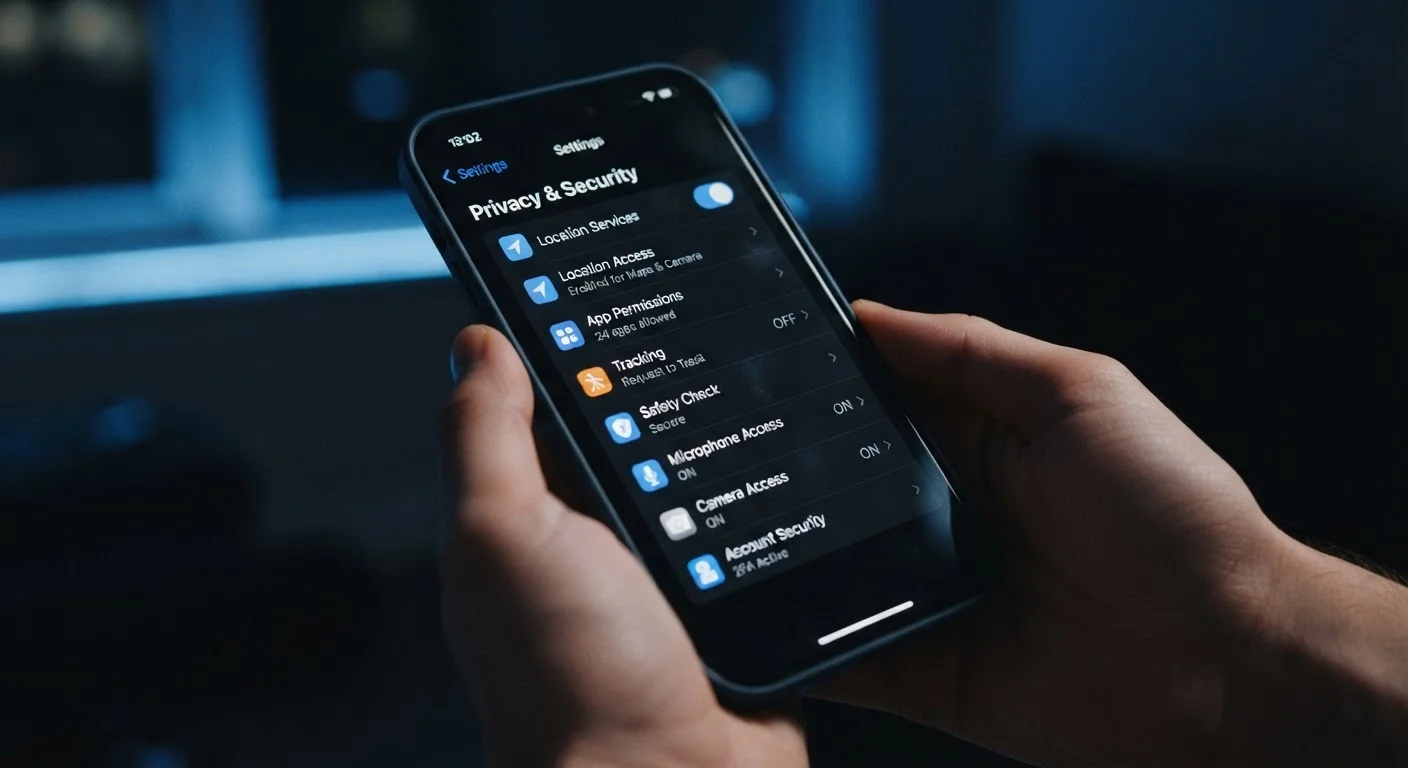
Unless an app has a clear, ongoing need for background location (turn-by-turn navigation being the obvious exception), switching it to "While Using" or "Never" limits continuous tracking without affecting core functionality. Check this under Settings > Privacy & Security > Location Services on iOS, or Settings > Location > App permissions on Android.
Most apps work fine with "While Using" location access — "Always On" rarely benefits you.
Ad tracking and personalized advertising toggles
Both major mobile platforms include a system-level setting that limits how advertisers can track your behavior across apps. On iOS, this is called App Tracking Transparency — apps must request permission before tracking you across other companies' apps and websites. On Android, you can opt out of ads personalization under Settings > Privacy > Ads.
Enabling these restrictions doesn't eliminate ads, but it does reduce the detail of behavioral profiles built from your activity. It's a straightforward setting with no meaningful downside for typical users.
Limiting ad tracking reduces the behavioral profiles built around your daily app activity.
Browser cookie and storage settings
Browsers store cookies that help sites remember your preferences — but third-party cookies specifically are placed by advertisers and data brokers to track you across unrelated websites. Most major browsers now offer the option to block third-party cookies or enable enhanced tracking protection by default, but these settings are often not enabled out of the box.
In Chrome, check Settings > Privacy and Security > Cookies and other site data. In Firefox, Enhanced Tracking Protection is found under Settings > Privacy & Security. Safari blocks most third-party cookies by default, but it's worth confirming this is still active under Preferences > Privacy.
[note_callout]Third-party cookies track you across unrelated websites — blocking them is a low-effort, high-impact change.
Microphone and camera access for apps that don't need it
Over time, apps accumulate hardware permissions that were granted during setup or after a single prompt and then forgotten. A social app that once requested microphone access for a voice feature may still have it months later, even if you never use that feature.
Audit these regularly under your device's privacy settings. On iOS: Settings > Privacy & Security > Microphone (and Camera). On Android: Settings > Privacy > Permission Manager. Revoke access for any app where the reason for needing it isn't immediately obvious. This also has the side benefit of reducing battery drain — see our breakdown of battery-draining app behaviors for more on that connection.
Forgotten microphone and camera permissions are easy to miss and straightforward to revoke.
Syncing and backup settings that share more than expected
Cloud backup and sync services are valuable, but they often upload more than users realize — contacts, photos, call logs, messages, and browsing history can all be included depending on your configuration. Review exactly what your device is syncing under your account's backup settings and disable categories you're not comfortable storing with a third party.
On iOS, check Settings > [Your Name] > iCloud and toggle off any data categories you don't actively need synced. On Android with a Google account, review this under Settings > Google > Backup. Selective syncing keeps your backup functional while limiting the scope of what's stored remotely.
Cloud backups often include contacts, messages, and browsing history by default — review what's actually included.
Notification previews on the lock screen
By default, many phones display full message previews on the lock screen — meaning anyone glancing at your phone can see the content of texts, emails, and app alerts without unlocking it. This is a physical privacy risk that's easy to overlook.
Both iOS and Android allow you to show notifications but hide their content until the device is unlocked. On iOS: Settings > Notifications > Show Previews > When Unlocked. On Android, this is typically under Settings > Notifications > Lock screen notifications. For more on organizing what you see and when, our guide to smarter notification settings covers this in detail.
Full lock screen previews let anyone nearby read your messages without touching your phone.
Make It a Habit, Not a One-Time Fix
Privacy settings aren't static. Apps update, operating systems add new data-sharing features, and permissions you granted years ago may still be active for apps you rarely use. A brief quarterly review — checking location access, app permissions, and browser settings — keeps your exposure from creeping back up over time.
Set a Recurring Privacy Check-In
Add a recurring calendar reminder every three months to review your app permissions, location settings, and browser privacy options. OS updates and app changes can quietly reset or introduce new data-sharing defaults. A short review session is far easier than trying to audit everything at once after years of unchecked access.
If you want to go deeper on what individual app permissions actually mean before your next review, our explainer on app permissions breaks down each category on both Android and iOS. And if you're installing something new, a quick pre-download safety check can surface permission red flags before they become a problem.
This article is for general informational purposes only. Privacy features, menu names, and setting locations vary by device manufacturer, operating system version, and app. Always verify current options directly within your device or software settings.