

Key Takeaways
Our Verdict
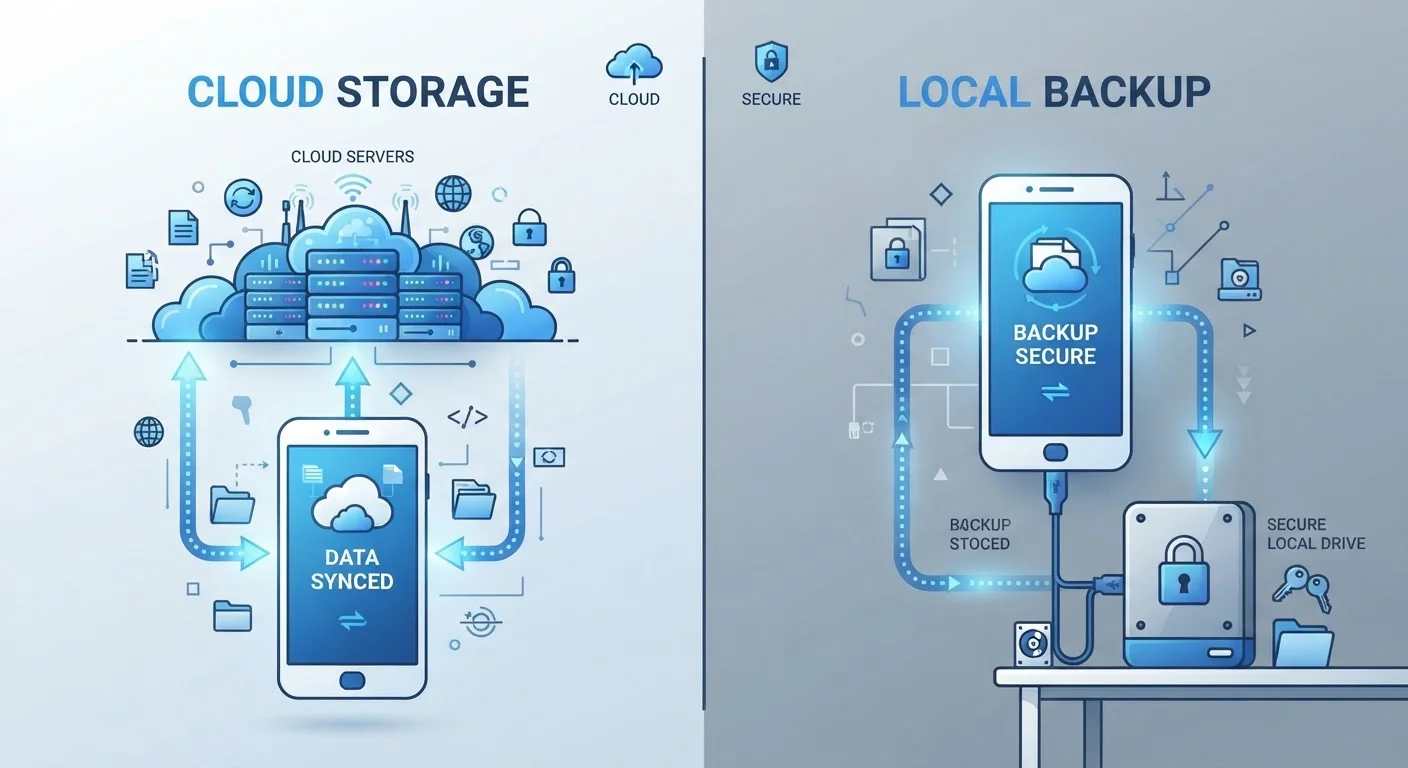
Cloud sync wins on convenience, cross-device access, and loss protection, while local storage offers stronger privacy and independence from internet connectivity. Neither approach is universally superior — the right choice depends on what you value most: seamless access or tight data control.
| Best for | Recommended |
|---|---|
| Users who switch devices often or share data across platforms | Cloud Sync |
| Privacy-conscious users who want minimal third-party data exposure | Local Storage |
| Users who want a safety net against device loss or damage | Cloud Sync |
| Users in areas with limited or unreliable internet connectivity | Local Storage |
How Each Approach Works
When an app stores data locally, it writes files — notes, photos, settings, records — directly to your device's internal storage. Nothing leaves your phone or tablet unless you explicitly export or back it up yourself. Apps like certain journal or finance-tracking tools default to this model.
Cloud sync takes a different path: the app continuously or periodically sends your data to remote servers maintained by the app developer or a cloud infrastructure provider. When you open the app on another device, it pulls the latest version from those servers. Calendar apps, note-taking tools, and most social platforms operate this way by default.
Understanding this distinction matters more than many users realize. It directly shapes what happens to your data if your phone is lost, what a company can technically access, and whether you can use the app without an internet connection. For a deeper look at what data apps can access more broadly, see our guide to app permissions.
Convenience and Accessibility
Cloud sync's headline advantage is effortless continuity. Sign into your account on a new device and your data is already there. This matters especially when setting up a replacement phone — migrating to a new smartphone is dramatically smoother when apps sync through the cloud rather than requiring manual transfers.
Local storage, by contrast, demands more planning. If you want your data on a second device, you'll need to export a file and import it manually — a process that ranges from mildly tedious to genuinely complex depending on the app. Offline access, however, is one area where local storage holds a clear edge: your data is always available regardless of your internet connection.
| Cloud Sync | Local Storage | |
|---|---|---|
| Cross-device access | Seamless, automatic | Manual export required |
| Offline availability | May require connection to sync | Always available offline |
| Data loss on device loss | Low risk — data on server | High risk without manual backup |
| Third-party data exposure | Data on provider servers | Stays on your device only |
| Setup and maintenance | Mostly automatic | User manages backups manually |
| Account compromise risk | Remote access if account is hacked | No remote exposure |
Privacy and Security Trade-Offs
Local storage keeps your data under your direct physical control. No third party can access a locally stored file unless they have access to your unlocked device. For sensitive categories — personal health records, private financial notes, confidential correspondence — this boundary can be meaningful.
Cloud sync introduces a different threat surface. Your data travels over the internet and resides on servers you don't control. Reputable services use encryption both in transit (while data moves) and at rest (while it's stored on their servers), but the practical security depends heavily on how well those systems are implemented and maintained. End-to-end encryption — where only you hold the keys — offers stronger protection, but not every cloud service provides it. The same scrutiny you'd apply to choosing where to store passwords applies here.
Check for End-to-End Encryption
When evaluating a cloud-syncing app, look specifically for end-to-end encryption (E2EE), which means only you — not the service provider — can read your data. Not all cloud services offer this. Check the app's privacy policy or security documentation before storing sensitive information.
Account security is also a factor: if your cloud account credentials are compromised, an attacker may be able to access your synced data remotely — a risk that doesn't apply to purely local storage.
What Happens When You Lose Your Device
This is where the two approaches diverge most sharply. With cloud sync, losing your phone is frustrating but rarely catastrophic from a data perspective — your information lives on the server and restores to your next device after you log back in.
With local-only storage and no external backup, a lost, stolen, or broken device can mean permanent loss of everything saved in that app. This is a real risk that many users underestimate until it happens. If you prefer local storage for privacy reasons, pairing it with a manual backup routine — exporting to a computer or encrypted external drive — closes much of this gap. See also managing your smartphone storage effectively for related best practices.
68%
Americans who have experienced data loss
According to Backblaze's consumer data loss research, a majority of US users have lost data at some point, underscoring the value of reliable backup strategies.
1 in 10
Laptops stolen each year on US campuses
FBI property crime data has consistently shown portable devices are among the most commonly stolen personal items, highlighting local-only storage risks.
Many apps now offer a middle path: storing data locally by default while giving users the option to enable cloud backup on demand. This hybrid model lets privacy-minded users keep data off remote servers during normal use while retaining the option to create a backup before switching devices.
Making the Right Choice for Your Apps
There's no universally correct answer. A few practical questions can guide your decision for each app you rely on:
- How sensitive is the data? Highly personal records warrant more caution about cloud storage unless the service offers verified end-to-end encryption.
- Do you use multiple devices? Cloud sync makes cross-device access seamless; local storage makes it a manual chore.
- How reliable is your internet connection? Local storage guarantees offline access without workarounds.
- What's your backup habit? If you won't consistently export backups manually, cloud sync provides a meaningful safety net against device loss.
Before enabling cloud sync in any new app, it's worth reviewing what data the app collects and how it's protected — a habit that pairs well with doing a safety check before downloading any app.