

Key Takeaways
Post-Update Performance Slowdown
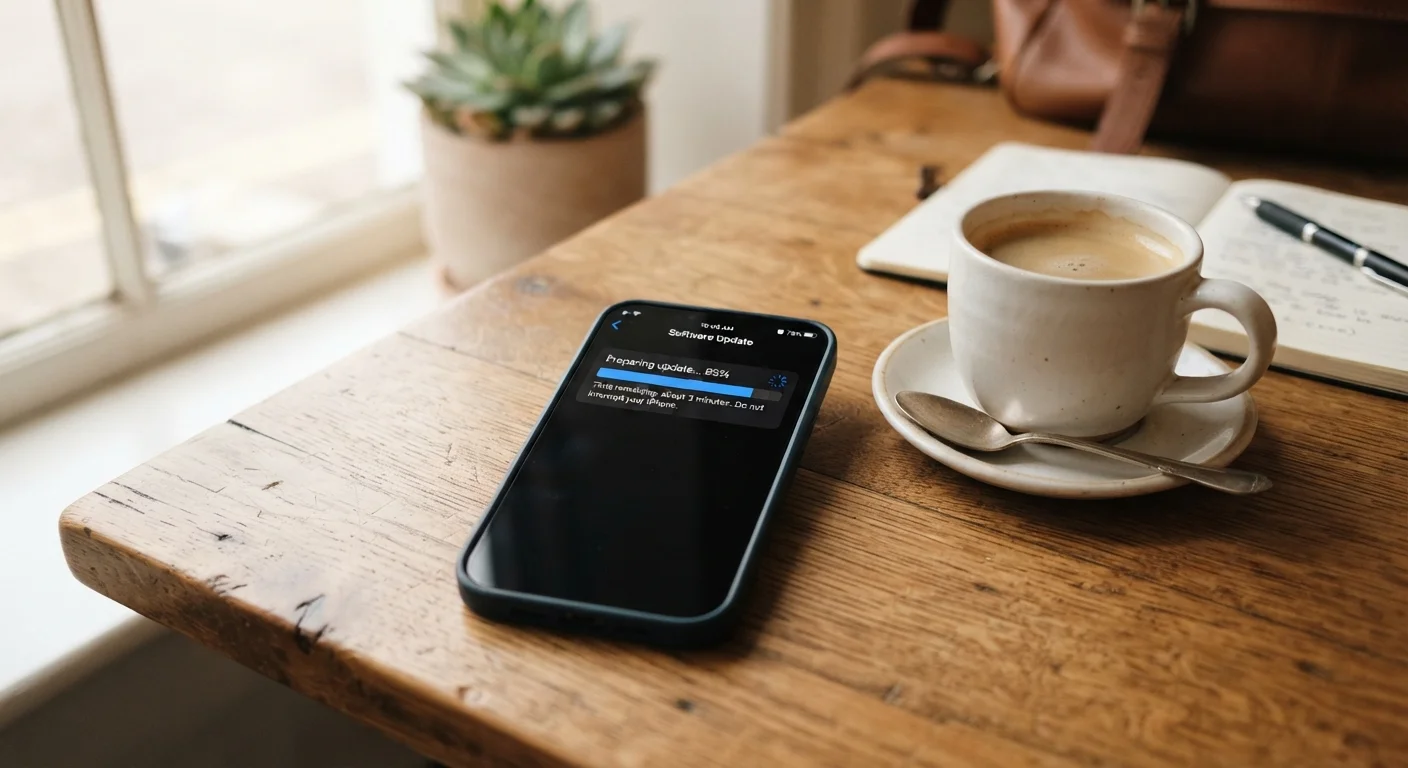
A post-update performance slowdown happens when a device — phone, tablet, or computer — feels noticeably slower after installing a software update. This isn't always a malfunction. The device is often completing background tasks triggered by the update, such as re-indexing files or recompiling apps, which temporarily consume extra processing power and memory.
Modern operating systems use just-in-time (JIT) compilation and background optimization passes after major updates; these processes can saturate CPU and storage I/O for hours or even days on lower-end hardware.
What's Actually Happening Inside Your Device
When a software update finishes installing, most people assume the device is ready to go immediately. In practice, the update is just the beginning of a longer process. The operating system kicks off several intensive background jobs: re-indexing your photos and files so search works correctly, recompiling app code so it runs efficiently on the updated system, and rebuilding caches that were cleared during installation.
These tasks run quietly in the background while you're trying to use your device normally — and that's exactly why everything feels slower. The processor, memory, and storage are already under heavy load from the system's housekeeping work, leaving fewer resources for the apps you're actively using.
Security Updates Are Still Worth Installing
Even when performance dips temporarily, keeping your device updated is important for security. Updates routinely patch vulnerabilities that could otherwise expose your data or allow unauthorized access. Skipping them to avoid a short-term slowdown introduces longer-term risk that generally outweighs the inconvenience.
Think of it like renovating a kitchen while still cooking meals in it. The renovation crew (background processes) and the chef (your apps) are competing for the same limited space at the same time.
Why Older Hardware Feels the Impact More
A flagship device released in the last year or two typically has enough processing headroom to handle background optimization without you noticing much. An older device — one with a slower processor, less RAM, or a traditional hard drive — has much less margin. When the system claims a large share of those limited resources, everyday tasks like opening apps or scrolling through a feed slow to a crawl.
This is also why a device that ran perfectly well before an update can feel like a different machine afterward, at least temporarily. The hardware hasn't changed, but the software's demands have increased incrementally with each version. Over time, that gap between older hardware capability and newer software requirements widens.
24–48 hrs
Typical post-update background optimization window
Device manufacturers and OS developers generally describe this as the expected window for background processes to complete after a major software update.
10–15%
Recommended free storage for stable performance
A widely cited rule of thumb among device support communities is to keep at least 10–15% of internal storage free to allow room for system temp files and caching.
If your device is several years old and performance hasn't recovered after a few days, it may be worth checking whether your storage is nearly full. Running low on space forces the system to work harder to find room for temporary files. Our guide on keeping your smartphone storage under control has practical steps to reclaim space without losing anything important.
How Long the Slowdown Typically Lasts
For most devices, the heaviest background work wraps up within 24 to 48 hours of the update completing — assuming the device is charged, connected to Wi-Fi, and not being heavily used during that window. Major operating system updates (like a full iOS or Android version jump) can take longer than a minor security patch, simply because more components need to be rebuilt.
Restarting your device once the update is installed can help. A fresh restart clears processes that may have stalled and gives the system a clean slate to continue optimization. It's also worth checking your battery consumption after an update — it's normal for it to spike temporarily while background tasks run. For more on why that happens, see our explainer on why apps drain battery faster than expected.
Give Your Device Space to Finish the Job
After installing an update, plug your device in, connect to Wi-Fi, and let it sit idle for a few hours. Avoid heavy use during this window — background optimization completes faster when it isn't competing with foreground apps. A single restart once the update is fully installed can also help clear any stalled processes.
When a Slowdown Signals Something More Serious
If your device is still noticeably sluggish after 72 hours or more, it's worth investigating further. Check whether the update introduced a known bug — the manufacturer's support page or community forums often surface these issues quickly. Occasionally, an update can conflict with a third-party app, causing one poorly behaved application to consume a disproportionate share of resources.
You can also review which apps are consuming the most battery and CPU in your device's settings. If one app is running unexpectedly hot, force-closing or uninstalling it temporarily can confirm whether it's the source of the problem. Maintaining good device habits year-round — like managing storage and reviewing your privacy settings — can also reduce the chances of an update compounding existing issues.
This article is for general informational purposes. Device behavior may vary by manufacturer, model, and software version. Consult your device manufacturer's support resources for guidance specific to your product.